
Remove Line Breaks from Copied Chat Messages (Slack, Teams & Discord)
Your colleague wrote six lines with Shift+Enter; you copied them into a CRM note field that allows one. Chat apps are built to preserve line structure — and they dutifully paste it everywhere you take it. Here is how to flatten it in seconds, and how to stop it from happening.
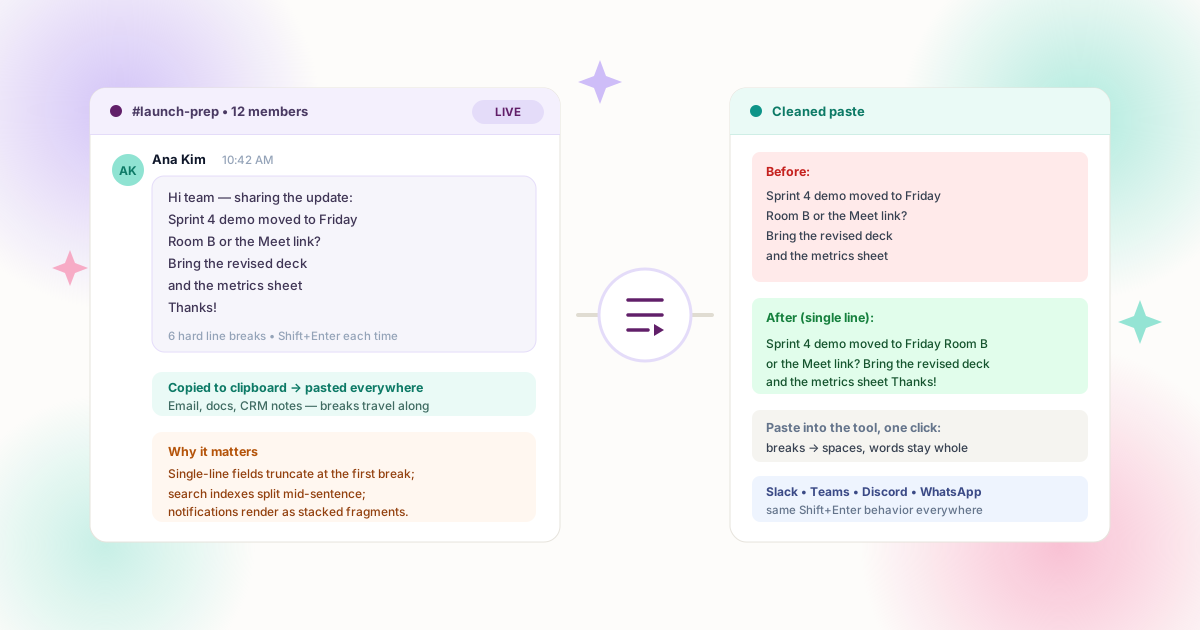
Why Chat Text Travels with Its Line Breaks
In every mainstream chat app, Shift+Enter inserts a real line break and Enter sends the message. The breaks are not styling — they are characters in the message text, stored in the app and copied to the clipboard exactly as they are.
That behavior is correct for chat. Multi-line messages scan well in a channel: updates read as lists, code snippets align, and quoted replies stay visually separate. The friction appears at the boundary — the moment copied text leaves the chat window. Paste into an email body and the stack of lines survives but looks ragged. Paste into a CRM's single-line note field and the value may truncate at the first break, or the validation layer rejects it outright. Paste into a spreadsheet cell or a ticket title and you have imported the same class of problem covered in our CSV cleanup guide.
Search indexes compound the issue: many tokenizers treat newlines as separators, so a phrase broken mid-sentence fails to match the query a user actually types. Notification previews cut at the first line, showing "Hi team —" and nothing else. The Slack formatting documentation is explicit that Shift+Enter creates a line break within one message — what it does not say is that you become responsible for that structure everywhere the text goes next.
CRM & Ticket Notes
Most note fields accept multi-line text but display one-line summaries — the first line becomes the only line anyone sees in lists.
Email & Newsletters
Quoted chat threads pasted into announcements carry broken fragments into HTML templates designed around paragraphs.
Spreadsheets & Forms
Cell validators and web form inputs that allow one line either error on the break or silently store a value that breaks exports later.
Search & Summaries
Indexes and AI summarizers segment on newlines — breaks mid-phrase produce noisy chunks and failed phrase queries.
Method 1: The One-Click Cleaner
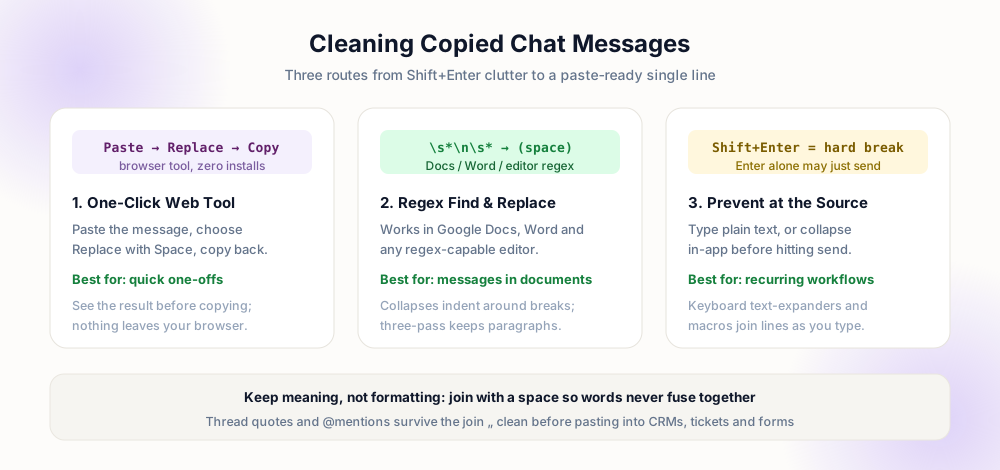
For the common case — one message, pasted once — a browser tool beats everything else because you can see the result before copying it on. Paste the message, choose replace-with-space, watch the single-line output appear, copy. Total time is under five seconds, and nothing leaves your machine: the transformation runs locally in the page.
The space matters. Joining with an empty string fuses the last word of each line with the first word of the next — "Friday\nRoom B" becomes "FridayRoom B". A single space at every join keeps words whole, and a trim pass removes any double spaces that arose where lines already ended in whitespace. The Replace with Space tool does exactly this, while the preserve-paragraphs mode is the right pick when the message has genuine paragraph gaps you intend to keep.
Method 2: Regex When the Text Is in a Document
Sometimes the chat text is already pasted into a Google Doc, Word file, or notes app along with forty other excerpts. There, per-message tooling is too slow — use a single find-and-replace that collapses newline runs to spaces. The pattern \s*\n\s* (with regex mode on) eats the newline plus any indentation around it and emits one space, so no double-space artifacts remain. The Notepad++ regex guide and the Google Docs guide both document the same pattern in their native dialogs.
If the document mixes chat excerpts with real paragraphs, protect the paragraphs first with the placeholder technique — replace blank-line markers with a token, flatten all remaining single newlines, then restore the token. That three-pass sequence is engine-independent: it works identically in Docs, Word, VS Code, and plain editors. For quotes where the line structure is genuinely meaningful — verse, address blocks, code — select those regions manually and leave them alone; scoping the replace to a selection keeps everything else intact.
CRM note field:

Hi team — sharing
the update: Sprint 4
demo moved to Friday

→ summary shows only line 1
CRM note field:

Hi team — sharing the
update: Sprint 4 demo
moved to Friday

→ full text in every view
Method 3: Prevent Breaks at the Source
Cleanup is reactive; a few habits remove the need entirely. First, reserve Shift+Enter for structure that earns it — lists, code, quoted fragments — and let short updates be one long line, which is how most channels read anyway. Second, prefer visible separators inside a message: dashes, bullets, and numbered characters render cleanly and copy as ordinary text with no special handling.
Third, for messages you routinely transfer — daily standup summaries, handoff notes, status updates — a text expander (Espanso, AutoHotkey, TextExpander) can store a template that expands as a single line, or even collapse your clipboard content automatically after you copy. Threaded replies deserve a special note: when you copy a whole thread rather than one message, each contribution carries its own breaks plus the app's attribution lines — flatten each part before assembling the transcript, or the receiving document will render the structure as an unreadable staircase that no reader will scroll through twice. The prevention philosophy matches the AI workflow article's advice: ask for clean output instead of cleaning afterward — see removing line breaks from AI text for the prompt-side version of the same idea. And when a whole thread must migrate, the batch cleanup guide processes multiple pasted blocks in one session. If the copy happened on a phone rather than a desktop, the iPhone and Android cleanup workflow runs the identical fix in a mobile browser.
Which Destinations Get Flats, Which Keep Structure
Flattening is not universally correct. The destination decides, and the same five-row test works for every tool you paste into:
| Destination | Breaks | Why |
|---|---|---|
| Ticket title / subject line | Strip | Single-line by contract; first break truncates display |
| CRM one-line note | Strip | List views and notifications show only the first line |
| Email body paragraph | Strip | Ragged wraps read poorly; paragraphs are the structure |
| Long-form document quote | Keep | Line structure shows it is a quote, aids scanning |
| Spreadsheet cell | Strip unless notes column | Breaks split exports; free-text columns may keep them |
When the destination is unknown — forwarding to a colleague, pasting into an unfamiliar tool — flatten. No downstream system has ever rejected a message because its lines were joined with spaces; several have rejected one because of a break they could not represent. For longer discussions that must preserve who-said-what, clean each contribution separately before assembling the transcript.
Worked Example: Standup Update into the CRM
Walk one real transfer through the whole pipeline. At 9:15, Ana posts the daily standup in Slack — six lines written with Shift+Enter: what she shipped, what is blocked, today's plan. At 9:20 the team lead copies it into the Jira ticket's one-line summary field, and the field accepts the paste without complaint. At 10:00 the dashboard renders the summary in a table cell and shows only "Shipped: export fix". The break did not cause an error; it caused silence.
The fix, retroactively. Open the cleaner, paste the six-line message, and the single-line result appears with spaces at every former boundary — no fused words because the join used a space, no double spaces because trailing whitespace was trimmed. Copy, paste over the ticket summary, done. For the dashboard, a backfill job that replaces newline characters with spaces in the summary column repairs every historical row in one transaction; the detection and batch-update pattern is documented step by step in the SQL cleanup guide.
The fix, prospectively. Two changes stop the next occurrence. On the paste side, the ticket form's input handler normalizes pasted values — replacing newline runs with spaces and trimming — which costs a few lines of code and never surprises anyone because the previewed value is what gets stored. On the send side, the team adopts a house convention: standups are written as short lines with leading dashes rather than stacked fragments, so even a raw copy lands as clean list text. Three weeks later the detection query returns zero new rows, and the cleanup tool is back to handling only true one-offs.
Why both halves matter. Retroactive repair clears the backlog that is already breaking reports; prospective rules keep it from refilling. Teams that do only the first rediscover the problem every quarter, and teams that do only the second inherit months of accumulated damage. The same paired strategy — batch repair plus entry validation — closes every article in this series, from spreadsheet cells to database columns.
Pre-Paste Checklist
- Destination checked — single-line field, paragraph field, or structured quote; the answer decides flat or kept.
- Words are intact — every join used a space, so no two words fused at a former line boundary.
- Mentions and links survived — flattening must not disturb URLs or the names attached to them.
- Quotes still identifiable — if you kept structure for a quoted block, indentation or markers still mark it as a quote.
- Nothing truncated — the receiving field stored the full message, not just its first line.
Frequently Asked Questions
How do I copy a Slack message without line breaks?
Why do Teams and Slack messages paste with so many breaks?
What is the fastest way to clean a copied chat message?
How do I stop creating line breaks while typing?
Should I keep line breaks when pasting into documents?
Explore Related Tools & Tutorials
Remove Line Breaks from Email →
The most common next stop for cleaned chat text — Outlook and Gmail specifics.
GuideRemove Line Breaks in Google Docs →
Regex find-and-replace for when chat excerpts live in a document.
ToolReplace Line Breaks with Space →
Paste the message, copy the single-line result — five seconds, no install.
ConceptsLine Breaks vs Paragraph Breaks →
Which break your message actually contains, and what each one should become.
MobileRemove Line Breaks on iPhone & Android →
When the copy happened on a phone — same fix, pocket-sized browser.