
How to Remove Line Breaks from ChatGPT & AI-Generated Text
AI assistants answer in short lines, bullet stacks, and markdown blocks — brilliant on screen, painful to paste. Learn where those line breaks actually come from, how to strip them without destroying paragraphs, and how to ask the model to never create them again.
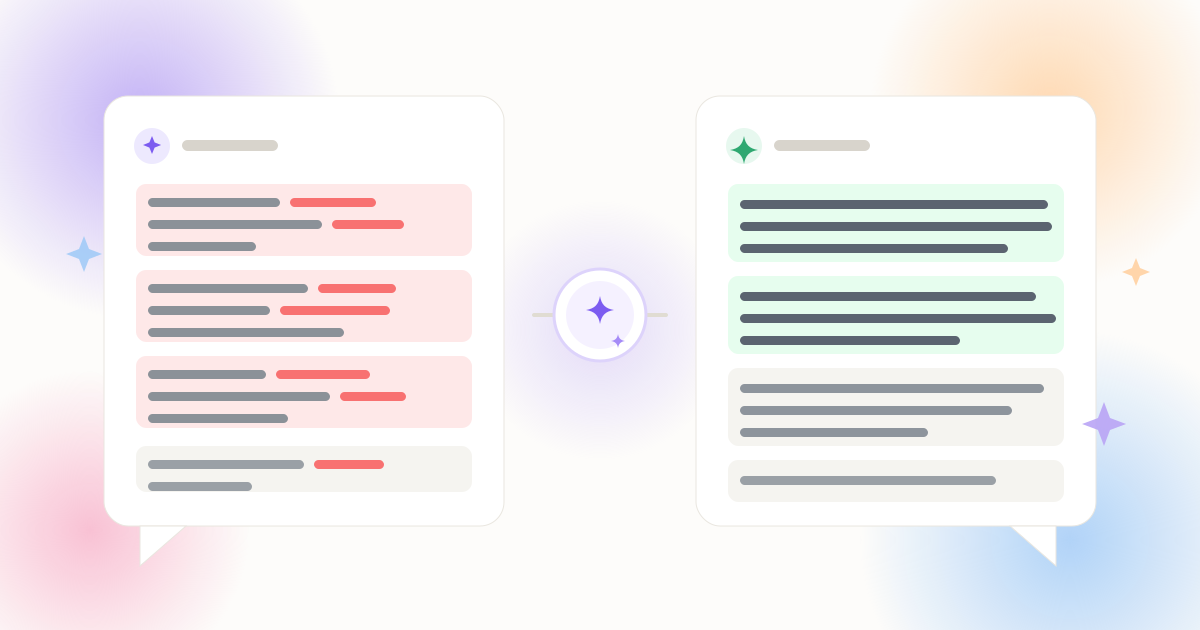
Why AI Output Is Full of Line Breaks
Large language models generate text one token at a time and present it inside narrow chat bubbles. Every design choice in that pipeline — display width, markdown rendering, readability heuristics — adds line breaks that were never meant to travel with the words.
Start with the chat interface itself. Responses are rendered in a column roughly 60 to 70 characters wide, and models quickly learn that short lines, frequent headings, and tight lists are easier to scan in that space. Next comes markdown: models format answers with ## headings, bullet lists, bold lead-ins, and the occasional two-space hard break — syntax that disappears when you copy the text into a plain editor, while the raw newlines behind it remain. Finally, there is copy behaviour: some interfaces copy rendered structure, others copy the raw markdown, and a few inject their own wrapping. The destination — WordPress, Google Docs, an email, a spreadsheet cell — then interprets those newlines its own way.
The practical result is the paste tax: text that looked polished in the chat window arrives in your document as dozens of slivered lines, bullets where you wanted prose, and blank rows where markdown syntax used to be. Cleaning that up manually is tedious — but understanding which type of break you are dealing with turns a chore into a two-second operation.
Chat Bubble Wrapping
Short display width encourages the model to write in brief lines. When the text leaves that column, every stored newline becomes a visible, unwanted break in your document.
Markdown Hard Breaks
Two trailing spaces, a backslash at line end, headings, and list markers all encode structure as newlines that survive the copy but lose their meaning in plain destinations.
List-Heavy Formatting
AI loves bullets. Each item is its own line, and nested items stack further breaks — fine for slides, wrong for a paragraph in an article or newsletter.
JSON & Code Output
API responses carry escaped \n sequences inside strings; code fences add triple-backtick boundaries. Each needs a different cleanup than prose does.
Choose the Fix by Destination, Not by Model
The model is irrelevant to the cleanup — what matters is where the text is going. Each destination interprets newlines differently, so this is the mapping that saves the most time:
| Destination | What Breaks There | Best Cleanup | Mode |
|---|---|---|---|
| WordPress / blog CMS | Every newline becomes a block element; lists convert to markup | Clean to paragraphs, paste into Code/Text view | Preserve Paragraphs |
| Google Docs | Soft breaks render as line breaks inside the paragraph | Find & Replace with regex \n → space | Preserve Paragraphs |
| Email body | Client converts breaks to break tags in HTML mail | Flatten to prose before composing | Replace with Space |
| Spreadsheet cell / CRM field | Embedded newlines corrupt CSV imports and row parsing | Remove every break from the value | Remove All |
| Code file / config string | Stray newlines inside strings cause syntax errors | Fuse without inserting spaces | Remove All (Direct Fuse) |
| Design tool or subtitle file | Cue timing depends on exact line placement | Join lines manually, keep cue breaks | Manual review |
Markdown Breaks: The Hidden Half of the Problem
Most AI answers are markdown under the hood, and markdown has three newline meanings that behave differently once copied. A single newline is usually just a soft wrap — the renderer keeps the text flowing. A newline with two trailing spaces (or a backslash) is a hard break, forcing a new line inside the same paragraph. A double newline starts a brand-new paragraph or list block.
When you copy rendered text out of the chat window, the trailing spaces vanish but the raw line structure often remains — which is why the same paste can produce soft wraps in one app and hard paragraph splits in another. The safe rule: only double newlines should survive cleanup. Preserve Paragraphs mode works on exactly that principle — it dissolves single newlines into spaces, keeps blank-line paragraph boundaries, and rejoins words that were split across a wrap. Our deep dive on line breaks versus paragraph breaks explains the character-level mechanics if you want the full picture.
If you specifically need the markdown itself cleaned rather than rendered, strip the syntax first — headings (##), list bullets (- and *), and bold markers (**) — then normalize the remaining prose. Several text editors and most modern AI writing tools have a "paste as plain text" option that does a partial version of this automatically.
Visual Walkthrough: ChatGPT Paste, Before and After
A typical AI-generated answer copied into a document — short wrapped lines, list-like rhythm — versus the same content after a paragraph-preserving pass:
Here are three tips for
cleaner writing:

1. Cut filler words
2. Prefer active verbs
3. End paragraphs
with a point

Each tip works on
its own, but together
they transform a draft.
Here are three tips for cleaner writing: 1. Cut filler words 2. Prefer active verbs 3. End paragraphs with a point

Each tip works on its own, but together they transform a draft.
The numbered items now read as a single flowing sequence, and the genuine paragraph gap before "Each tip" is untouched. For a list you want to keep as a list, run the cleaner only on the paragraphs around it — or keep the list structure and clean the prose separately.
Manual Cleanup: Regex in Docs, Word & Editors
When you prefer a local tool over a browser one, three reliable routes cover almost every situation:
- Google Docs Find & Replace. Paste the AI text, open
Ctrl + H, tick Regular expression, search(?<!\n)\n(?!\n)and replace with a space. The lookbehind and lookahead ensure only single newlines are removed, so paragraph gaps stay. - Notepad++ or VS Code. Open Find & Replace with
Ctrl + H, enable regex, and use(?<!\n)\n(?!\n)→\n→when you must fuse everything into one line. Editors like these also show you the change count before applying. - Microsoft Word. Use the caret codes:
^p^pto a placeholder, then^pto a space, then restore the placeholder. The same two-pass pattern appears in our Word guide with screenshots of each step.
Regex gives you precision but demands careful escaping — one wrong parenthesis and the pattern silently matches nothing. If you would rather not debug patterns mid-decision, the browser-based cleaner applies the same logic with a single click and shows you a live preview of the result before you copy.
Prevention: Ask the Model for Clean Output
The best cleanup is the one you never have to run. Language models respond well to explicit formatting constraints, and a short instruction in your prompt or custom instructions reliably reduces break noise at the source.
- Request flowing prose: "Write the answer as continuous paragraphs with no line breaks, no bullet lists, and no headings — just prose I can paste directly."
- Set a target length: "Keep each paragraph to four to five sentences and separate paragraphs with a blank line only."
- Forbid markdown: "Do not use markdown syntax — no ##, no -, no ** — plain text only."
- Lock it in globally: add the same constraints to custom instructions or a project-level system prompt so every response starts clean, not just the ones you remember to ask about.
Even with perfect prompting, quotes, code samples, and pasted source material will reintroduce breaks — so keep the cleanup step in your workflow as the final pass. Prompting shapes the output; the cleaner guarantees it.
Developers: Newlines in JSON Responses & Code
If you consume AI output through an API, the newlines arrive differently: inside a JSON string, a line break is the two-character escape \n, and pretty-printed JSON adds real newlines between keys and braces as well. Parsing the JSON correctly removes the structural breaks; the ones inside content strings remain, exactly as the model wrote them.
For prose fields, run the parsed string through a paragraph-preserving normalize before storing it in a database or rendering it in an app — user-facing copy stored with hard wraps will render as hard wraps everywhere downstream. For data fields such as names, tags, or single-line labels, strip newlines entirely, and for code strings, fuse without adding spaces so syntax stays valid. In JavaScript, text.replace(/\n+/g, " ") handles the prose case in one line; regex-capable pipelines such as sed do the same job for files. The same discipline applies to bulk work — see batch remove line breaks for processing exported responses in volume. And when that copy is headed for a feed, the LinkedIn and social posts guide keeps the paragraph rhythm intact while the wraps disappear.
Which Cleaning Mode Fits Your AI Workflow?
| Your Input Looks Like… | Mode | Result | Typical Use |
|---|---|---|---|
| Wrapped paragraphs with blank-line gaps | Preserve Paragraphs | Flowing prose, real paragraphs intact | Articles, scripts, newsletters, docs |
| List items you want as one sentence | Replace with Space | Single continuous line | Meta descriptions, taglines, alt text |
| Names, tags, or field values | Remove All | One unbroken value | CSV cells, form fields, database columns |
| Base64, URLs, or code strings | Remove All (Direct Fuse) | Characters joined with no spaces | Tokens, links, minified strings |
| OCR or scanned source text quoted in the answer | Smart PDF Mode | Punctuation-aware rejoining | Model quoting scanned documents |
Pre-Paste Checklist
- Identify the structure you need to keep. Paragraphs, list items, or a single line — the answer decides your mode before you paste anything.
- Strip markdown syntax before normalizing if your destination is a plain-text field; otherwise the leftover hashes and bullets become noise, not structure.
- Watch for split words. Aggressive wrapping can break a word across two lines; a good cleaner rejoins them, a naive replace-with-space leaves a mid-word gap.
- Preview the diff. Always read at least the first paragraph after cleanup — it is where spacing errors are most visible.
- Save the cleaned version back into your prompt or snippet library so the next round-trip starts from clean text.
Frequently Asked Questions
Why does ChatGPT keep putting line breaks in the middle of sentences?
How do I remove line breaks without joining my paragraphs together?
(?<!\n)\n(?!\n) in Google Docs, Notepad++, or VS Code — the lookaround conditions guarantee paragraph gaps are skipped.Should I remove line breaks from AI text before pasting it into WordPress?
What about the \n characters inside JSON from an AI API?
Is it safe to paste my AI text into an online tool?
Explore Related Tools & Tutorials
Line Break Remover →
Paste AI output, choose a mode, copy publication-ready text — all inside your browser.
ExplainerLine Breaks vs. Paragraph Breaks →
The character-level difference between \n and \n\n — and why it decides your mode.
ToolPreserve Paragraphs Tool →
The exact mode built for AI output: dissolve wraps, keep your paragraph structure.
GuideRemove Line Breaks in Microsoft Word →
Two-pass caret replacement for AI drafts you want to edit in Word first.
GuideClean Copied Chat Messages →
Shift+Enter clutter from Slack, Teams and Discord — same cleanup, different source.
Social MediaClean LinkedIn & Social Post Copy →
AI drafts become posts — keep the paragraph gaps, drop the accidental wraps.