
How to Remove Line Breaks in Google Docs (Find & Replace + Regex)
Google Docs stores every Enter as a paragraph break and every Shift + Enter as a line break — so text pasted from a PDF, an email, or a chat arrives as dozens of slivered lines. This guide shows every working method, from plain Find & Replace to paragraph-safe regex patterns.

Why Google Docs Is Full of Line Breaks
Google Docs has no margins of its own — it stores exactly what you paste. Every newline that came with your text becomes a permanent part of the document, rendered as either a paragraph break or a line break depending on which key created it.
Three sources cause most of the mess. Copied web and PDF text carries the source's hard wraps, so a 60-character margin in the original becomes 60-character fragments in your Doc. Email and chat copy brings plain-text line structure that was never meant for a word processor. And manual editing habits — pressing Enter at the end of every visual line instead of letting Docs wrap — bake the same breaks into new documents.
Unlike Microsoft Word, Docs does not use caret codes like ^p. Instead, the Find and Replace dialog understands regular expressions, which means one pattern can target every unwanted newline while leaving real paragraphs untouched. The official instructions live in Google's find and replace help article, and the sections below turn them into a repeatable cleanup workflow.
Pasted PDF Text
Academic papers, contracts, and reports keep their printed margin widths, dropping a hard return after every visual line when copied into Docs.
Email & Chat Copy
Plain-text messages wrap near 72 characters and quote old replies line by line, so pasted threads inherit breaks from every sender in the chain.
Lists & Outlines
Numbered and bulleted items each live on their own line. Cleaning carelessly merges the list into one paragraph and destroys the structure you wanted.
Resumes & Forms
Contact blocks, address lines, and form templates use deliberate breaks — you need to remove the ugly ones without flattening the intentional ones.
Method 1: Find & Replace Without Regex
The simplest route works when you just want every break gone. Open your document, press Ctrl + H on Windows or Cmd + H on Mac — or choose Edit → Find and replace — and follow these steps:
- In the Find field, type
\n(backslash followed by n). This only matches when Match using regular expressions is ticked, so enable that checkbox first. - In Replace with, type a single space. The Replace field is literal here — a space is inserted exactly as typed, which is exactly what you want.
- Press Replace all. Every line break in the document becomes a word space, and sentences rejoin into continuous paragraphs.
- Undo with
Ctrl + Zif the pass merged paragraphs you wanted to keep — then move to the paragraph-safe method below.
This covers the most common complaint — a document where every line is its own paragraph. But a blanket replace also erases genuine paragraph boundaries, so for articles, reports, and anything with real structure you need the pattern discipline in the next section. The same caret-free logic applies when text moves into Microsoft Word later; our Word line break guide shows how that editor differs.
Method 2: Regex Patterns That Actually Work in Docs
Tick Match using regular expressions and the Find field becomes a pattern matcher. These are the patterns that matter for line break cleanup, in the order you should run them:
| Find (regex) | Replace with | What it does | Use when |
|---|---|---|---|
\n\n | ## (any placeholder) | Parks real paragraph boundaries behind a token | Always step one of a paragraph-safe pass |
\n | (space) | Replaces every remaining single line break with a space | Normal prose cleanup |
\n+ | (space) | Collapses runs of two or more breaks in one action | Documents with noisy blank rows |
(?<!\n)\n(?!\n) | (space) | Removes only breaks not touching a blank line — paragraphs survive automatically | One-pass paragraph-safe cleanup |
\t | (empty) | Deletes tab characters left by tables and pasted lists | After newline cleanup, for spacing polish |
The lookaround pattern in row four deserves attention: (?<!\n) refuses to match a break that follows another break, and (?!\n) refuses one that is followed by another. Blank-line paragraph boundaries therefore never qualify, while mid-sentence wraps always do. One Replace all call and the document is clean.
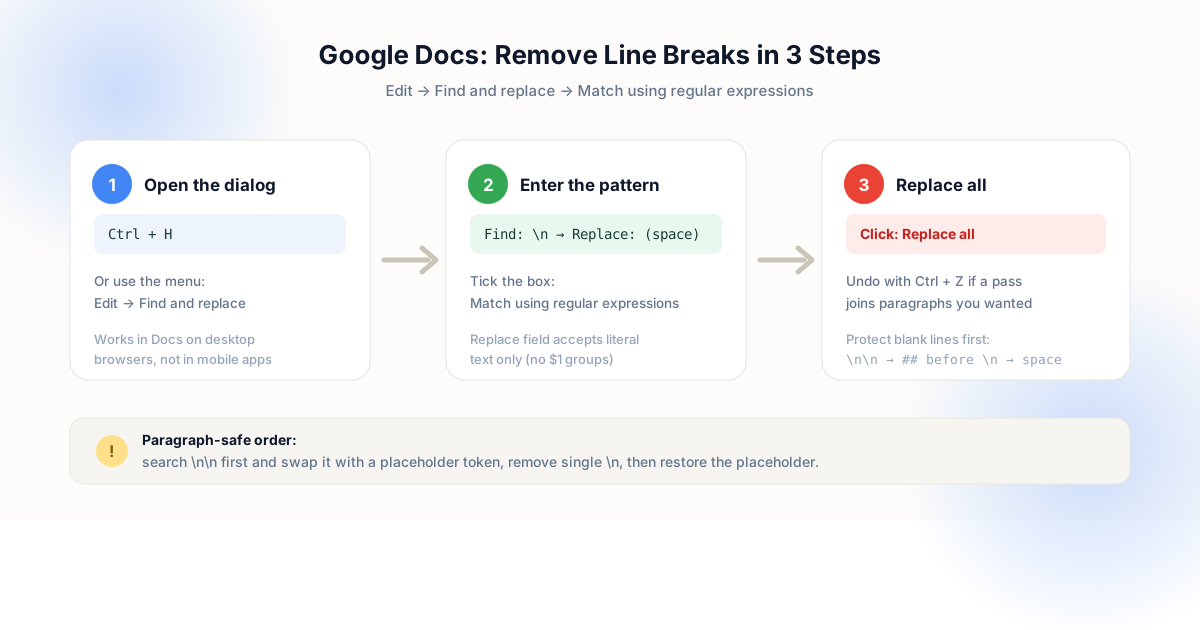
\n\n, space for \n, restore the placeholder.Method 3: The Paragraph-Safe Three-Pass Method
If lookaround syntax ever misbehaves in your browser, the classic placeholder sequence achieves the same result with three plain patterns. It is longer, but it is impossible to get wrong:
- Protect paragraphs: Find
\n\n, replace with##. Every blank-line boundary in the document is now a token you can see. - Remove the wraps: Find
\n, replace with a single space. All remaining single breaks disappear. - Restore structure: Find
##, replace with\n\n. Real paragraphs return; the fake ones stay gone.
Pick a placeholder that cannot appear in your text — ## works for prose, but a token like @@PARA@@ is safer for markdown-heavy documents where hashtags are meaningful. Always run a quick Ctrl + F count of your placeholder before replacing, so you can confirm every one was restored.
Before and After in Google Docs
A typical paste, followed by the result of a paragraph-safe pass:
Project Atlas kicks off
in the first week of
November. The design
phase runs for three
sprints.

Budget approval is
needed from finance
before kickoff.
Project Atlas kicks off in the first week of November. The design phase runs for three sprints.

Budget approval is needed from finance before kickoff.
The wraps after "in the first week of" and the other mid-sentence breaks are gone, while the blank line between the two paragraphs survives untouched. For the same operation on text that must stay outside Docs — form fields, CRM notes, spreadsheet cells — the Preserve Paragraphs tool applies identical logic in one paste.
What Google Docs Regex Can and Cannot Do
Knowing the boundaries of the feature saves an hour of debugging. Three hard limits matter:
- The Replace field is literal. Regex works only on the Find side. Anything you type into Replace with is inserted as plain text — so
$1capture references do nothing in Docs. (Capture groups in replacements work in Google Sheets, not in Docs.) - No advanced find on mobile. The Android and iOS apps do not expose regex Find and Replace. Clean on desktop, or clean before you paste.
- Engine differences are real. Google's own products document the RE2 engine for Sheets functions such as REGEXREPLACE, while the Docs dialog uses your browser's engine. Patterns using lookaround work in modern browsers, but if a pattern silently matches nothing, fall back to the three-pass placeholder method.
Also remember that regex formatting entered into the Replace field is treated as literal text by design — this is documented behavior, not a bug. For regex replacement features with capture groups, Google points users to Sheets functions; for Docs, order your passes so each one only needs literal replacement text.
Alternative Routes: Sheets, Word, and the Browser
Find and Replace is not the only path. Depending on where the text is headed, a different tool may be faster or safer:
| Route | Speed | Paragraph Safe? | Best For |
|---|---|---|---|
| Docs Find & Replace + regex | Under a minute | Yes, with the placeholder or lookaround pattern | Cleaning text that must stay in the Doc |
| Google Sheets REGEXREPLACE | Instant per cell | Configure the pattern per column | Batch data, CSV-shaped content, form exports |
| Microsoft Word replace | Under a minute | Yes, with caret codes | Files that will be shared as .docx |
| Browser line break remover | Seconds | Yes — built-in Preserve Paragraphs mode | Cleaning before paste, any destination |
Sheets deserves special mention for tabular data: REGEXREPLACE(A2, "\n", " ") flattens a cell in one formula, and the Sheets function set is covered in our Excel and Google Sheets guide. If the content originated as a scanned PDF, clean the hyphens and margin returns first by following How to Clean Up Text Copied from a PDF, then finish the structure work here.
Automation: Repeat Cleanup with Apps Script
Editors who clean the same document pattern daily can automate the three-pass method. Google Apps Script exposes the document body through DocumentApp.getActiveDocument().getBody(), and its replaceText method accepts a regex pattern plus a literal replacement — performing both sides of the operation in a single call.
A practical script runs the same sequence you would run by hand: replace double newlines with a visible token, replace single newlines with spaces, then restore the token. Bind it to a custom menu item and the whole cleanup becomes one click for every future document. Apps Script is documented on the Google Developers site, and the pattern set is identical to the table above — only the delivery mechanism changes.
For one-off documents, automation is overkill — a single pass through Find and Replace takes less time than opening the script editor. Reach for Apps Script when the same broken input lands in your workspace every week: recurring newsletter copy, weekly reports, or template text imported from another system.
Pre-Cleanup Checklist
- Decide what must survive. Paragraphs, lists, or address blocks — name the structure before you open the dialog, because the pattern choice depends entirely on it.
- Always tick Match using regular expressions before typing a pattern; without the checkbox,
\nis searched as a literal backslash-n. - Protect double newlines first — either with the placeholder pass or the lookaround pattern — before removing single breaks.
- Read the result count. Replace all reports how many changes it made; zero matches means your pattern or checkbox is wrong, not that the document is clean.
- Proofread the joins. Merged lines occasionally leave double spaces — one quick read catches every one.
Frequently Asked Questions
How do I remove line breaks in Google Docs without removing paragraphs?
Ctrl + H, tick Match using regular expressions, and either use the single pattern (?<!\n)\n(?!\n) replaced with a space, or run the three-pass sequence: \n\n to a placeholder, then \n to a space, then the placeholder back to \n\n. Both approaches keep real paragraph boundaries while dissolving mid-sentence wraps.Why can't I use regex in the Replace with field?
$1 works in Google Sheets functions, not in the Docs dialog. Structure your cleanup as ordered passes so each replacement only needs plain text.How do I replace line breaks with a space in Google Docs?
Ctrl + H, tick Match using regular expressions, enter \n in Find, type one space in Replace with, and click Replace all. Every line break in the document becomes a normal word space.Can I do this in the Google Docs mobile app?
Does Google Docs use RE2 or my browser's regex engine?
Explore Related Tools & Tutorials
Preserve Paragraphs Tool →
Run the exact same logic in one paste — no dialog, no patterns, no undo anxiety.
GuideRemove Line Breaks in Excel & Google Sheets →
REGEXREPLACE, SUBSTITUTE with CHAR(10), and Power Query for cell content.
ExplainerLine Breaks vs. Paragraph Breaks →
Why \n and \n\n behave differently — the theory behind every pattern on this page.
GuideRemove Line Breaks from Email →
When the pasted text came from Outlook or Gmail, start with the source.