
How to Remove Line Breaks in Notepad++ with Regex (Find & Replace)
Notepad++ is the fastest place on Windows to strip line breaks from a text file — if you get the Search mode right. Here are copy-paste patterns for every scenario: single breaks, empty lines, Windows CRLF pairs, and paragraph-safe cleanup.
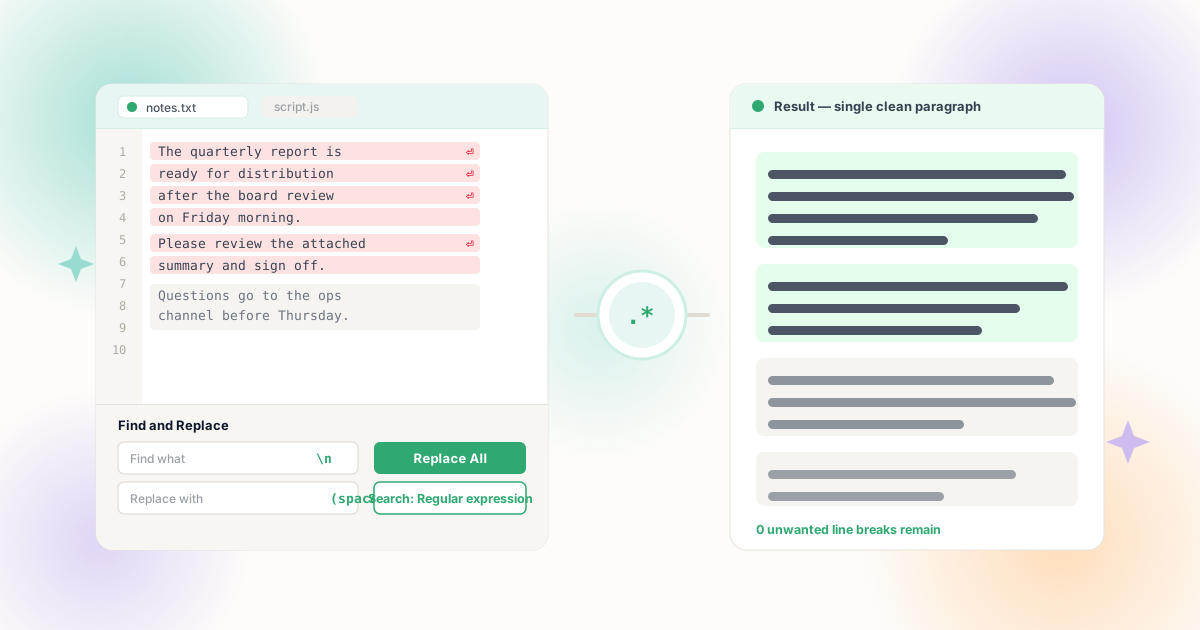
Why Notepad++ Is the Right Tool for Line Break Cleanup
Notepad++ is a free, open-source editor built for exactly this kind of surgical text work: raw files, full PCRE-compatible regular expressions, instant Replace All, and a single-key undo. No cloud upload, no formatting layer, no surprises.
Word processors hide line breaks inside paragraph markup, browsers collapse whitespace before you see it — but Notepad++ shows you the plain file. When a log export, a configuration file, a subtitle track, or a pasted block of prose carries hard returns after every line, the editor's Find and Replace dialog can rewrite all of them in one operation, on files large enough to make manual editing impossible.
The catch is mode selection. Notepad++ offers three Search modes — Normal, Extended, and Regular expression — and each interprets the same characters differently. Getting that radio button wrong is the single most common reason a pattern "does not work". Everything below assumes you press Ctrl + H, glance at the Search mode, and only then touch the Find field. The official Notepad++ user manual on searching covers every option in this dialog if you want the source reference.
Logs & Exports
Server logs, tool exports, and dumped data arrive with a newline after every record — often double newlines between entries that also need collapsing.
Subtitles & Scripts
SRT and VTT files rely on exact line placement. You need patterns that remove unwanted breaks without touching cue boundaries.
Config & Data Files
INI values, environment files, and JSON strings break parsers when stray newlines sit inside a value — fuse them without inserting spaces.
Pasted Prose
Articles and notes copied from wrapped sources need mid-sentence breaks removed while genuine blank-line paragraphs stay put.
Step 1: Set the Search Mode Correctly
Open Find and Replace with Ctrl + H and look at the three radio buttons at the bottom of the dialog. Their behavior differs enough to make or break your cleanup:
| Mode | What \n Means | Line Break Pattern | Use When |
|---|---|---|---|
| Normal | Literal backslash and letter n | Cannot express line breaks | Plain word substitution only |
| Extended | Special sequences like \r\n and \t work without regex | \r\n for Windows line endings | Simple CRLF replacement, no regex needed |
| Regular expression | Full PCRE pattern matching | \n, \r?\n, \R, lookarounds | Everything else — paragraphs, empty lines, conditions |
For most readers of this guide, Regular expression is the right choice. It treats \n as "any line feed", understands \r?\n as "a Windows or Unix newline", and supports the lookaround assertions needed for paragraph-safe work. If regex feels like overkill for a one-time CRLF swap, Extended mode's \r\n does the job without any pattern syntax at all.
Step 2: The Core Patterns
With Regular expression mode active, these are the workhorse replacements. Each entry is a complete Find / Replace pair you can type straight into the dialog:
| Find What | Replace With | Result | Paragraphs Safe? |
|---|---|---|---|
\n | (space) | All breaks become spaces — one long paragraph | No |
(?<!\n)\n(?!\n) | (space) | Mid-sentence wraps removed, blank-line boundaries kept | Yes |
\r?\n\r?\n | ## | First pass: park paragraph gaps behind a token | Step 1 of 3 |
^[\t ]*\r?\n | (empty) | Deletes blank and whitespace-only lines entirely | Yes — removes empty rows only |
-$ | (empty) | Strips hyphens left at line ends by wrapped words | Join words first, then fuse |
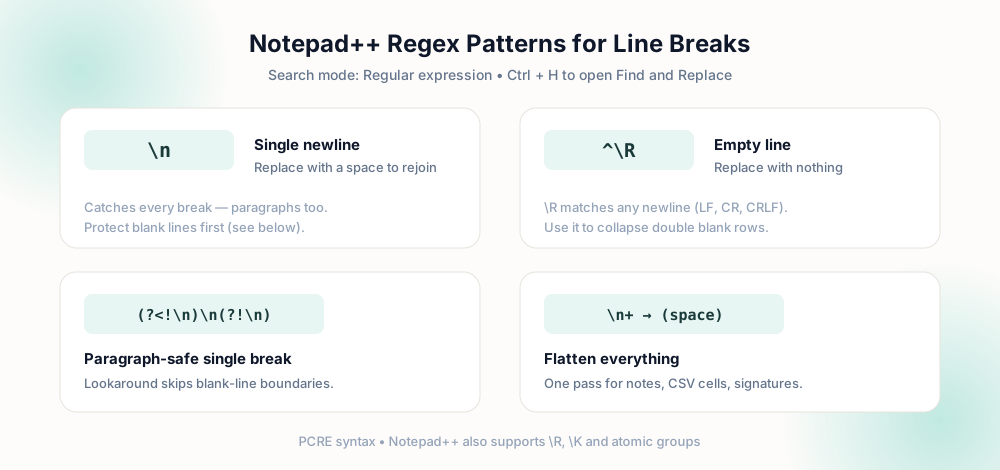
\n for a single break, ^\R for empty lines, the lookaround pair for paragraph-safe cleanup, and \n+ to flatten noisy runs in one pass.Step 3: Paragraph-Safe Cleanup in One Pass
The lookaround pattern (?<!\n)\n(?!\n) is the closest thing Notepad++ has to a "smart" newline replace. The first group asserts that no newline precedes this position; the second asserts that no newline follows it. A break sandwiched between two blank lines therefore fails both assertions and is left alone, while every ordinary wrap inside a paragraph matches.
If your file uses Windows line endings, the pattern becomes (?<!\r\n)\r?\n(?!\r\n) — the ? makes the carriage return optional so both CRLF and LF variants match. When in doubt, run \r?\n\r?\n to a placeholder first, then do a plain \n replace, then restore the placeholder. This three-pass sequence is engine-independent and works identically in Notepad++, Google Docs, and any regex-capable editor.
Before running Replace All on a file you care about, check the match count Notepad++ reports in the status bar. Zero matches means the pattern or mode is wrong; an absurdly large count means the pattern is broader than you intended. Both are cheaper to discover before the replace than after it — although Ctrl + Z still reverts a Replace All in a single step.
Before and After
A wrapped note loaded into Notepad++, and the same file after the paragraph-safe pattern:
Ship the release candidate
to staging tonight so QA
can start first thing.

Ping the infra team
if the deploy job
fails again.
Ship the release candidate to staging tonight so QA can start first thing.

Ping the infra team if the deploy job fails again.
Both paragraphs tightened into clean blocks, and the empty line between them was never a candidate for matching. For files that must end up as a single continuous string — a variable, a form value, a CSV cell — switch to \n+ replaced with nothing or a space, depending on whether the characters should touch.
Repeat It: Macros and Bulk Documents
Performing the same three passes on dozens of files gets tedious. Notepad++ has two built-in answers. First, macros: open Macro → Start recording, perform your find-replace sequence once, stop recording, then bind the macro to a shortcut through Settings → Shortcut Mapper. From then on, one keystroke replays the entire cleanup.
Second, Replace All in All Opened Documents — the button at the bottom of the Find dialog applies the same pattern across every file currently open in the editor. Open a folder's worth of exports, run one replace, and the whole set is cleaned. For files that are not text at all, or for content living in a browser-based workflow, our Batch Mode tool handles multiple pasted blocks in one session without leaving the page.
One caution with bulk work: regex operates on raw bytes, so files with mixed encodings can misbehave. Notepad++ shows the encoding in the status bar — confirm UTF-8 before running a pattern across a set, and keep copies of the originals until the output is verified. The same discipline applies when cleaning text that will later be parsed by a program; the AI text cleanup guide covers the JSON side of that problem, and the JSON cleanup guide explains why a blind replace on a JSON file must never be the fix.
Recipe Book: Patterns for Common File Types
The same editor behaves very differently on a log file than on a formatted article. These are the combinations that solve real jobs — pick the row that matches your file and adapt the pattern column exactly as written:
| File Type | Goal | Pattern |
|---|---|---|
| Log / CSV export | Join wrapped record lines without touching row ends | (?<!\n)\n(?!\n) → space |
| Formatted article | Remove soft wraps, keep paragraph gaps | Placeholder pass on \n\n, then \n → space |
| Code file | Delete blank lines only | ^\s*$\r?\n → empty |
| JSON with escaped breaks | Flatten values stored as literal \n sequences | Search mode Normal: \n → space |
| PDF-pasted text | Remove margin returns, then fix hyphens | \r?\n → space, then - → empty |
| Windows CRLF file | Normalize endings before Git or Linux tools | \r\n → \n (Extended mode) |
Two rows deserve extra care. For JSON, remember the breaks are stored as two-character escape sequences in the file, not as real line endings — so the replace must run in Normal mode, and the surrounding structure stays untouched. For PDF-pasted text, line removal and hyphen repair are two passes, never one: the hyphen sits at the end of a line, so order matters. The full sequence for that source lives in our PDF cleanup guide, which also explains why the breaks exist in the first place.
One habit makes every recipe safer to adopt: keep a small sample file — fifty lines with one paragraph break, one wrapped block, and one Windows ending — beside your notes. Before running any pattern on a real document, run it on the sample and confirm the match count lands where you expect. The entire loop takes seconds, and it converts regex from something you gamble on into something you verify. Patterns in the table above were all confirmed against exactly such a sample before being written down.
Safety Checklist Before Replace All
- Search mode says Regular expression (or Extended if you deliberately use
\r\nsequences). Normal mode cannot match a line break at all. - Read the match count in the status bar after the first Find. Zero or millions both mean stop and rethink the pattern.
- Protect paragraph gaps first with the placeholder pass or the lookaround pattern — never blanket-replace prose documents.
- Verify encoding in the status bar before bulk operations across multiple files.
- Know your escape hatch:
Ctrl + Zreverts a full Replace All as one action, but a saved-and-closed file is far harder to recover.
Frequently Asked Questions
How do I replace line breaks with spaces in Notepad++?
Ctrl + H, select Regular expression as the Search mode, enter \n in Find what, type one space in Replace with, and click Replace All. Every line break in the file becomes a word space in a single pass.Why is my newline pattern not matching?
\n only works under Regular expression. In Extended mode use \r\n instead, and in Normal mode the backslash-n is searched as two literal characters. Check the radio button first, then the pattern.How do I remove line breaks but keep paragraphs?
(?<!\n)\n(?!\n) and replace it with a space. The lookaround assertions exclude any break sitting next to a blank line, so paragraph boundaries never match. For CRLF files, adapt it to (?<!\r\n)\r?\n(?!\r\n) or use the three-pass placeholder method.How do I remove empty lines in Notepad++?
^[\t ]*\r?\n and replace with nothing. That matches lines containing only whitespace — including their newline — and deletes them without touching surrounding text. Use \n{2,} style runs only when you want to collapse several blank lines at once.Can I undo a Replace All in Notepad++?
Ctrl + Z immediately and the entire document returns to its prior state. For large multi-file operations, copy the originals somewhere safe first; undo history does not survive closing the file.Explore Related Tools & Tutorials
Line Break Remover →
Same results without patterns — paste, choose a mode, copy the cleaned text.
GuideRemove Line Breaks in Google Docs →
The same patterns, adapted for the Docs Find and Replace dialog.
ExplainerLine Breaks vs. Paragraph Breaks →
LF, CRLF, and CR explained — the theory behind every pattern above.
ToolRemove All Line Breaks →
Zero-space stripping for values, tokens, and config strings.
Text EditorsSublime Text & Vim / Neovim →
Join lines and regex workflows in alternative code and text editors.