
How to Remove Line Breaks in Microsoft Word Before & After Pasting
Pasting text copied from PDFs, websites, or emails into Microsoft Word often leaves behind stubborn, jagged line breaks. Learn the exact Find & Replace caret codes, the 3-step placeholder trick, automated VBA macros, and when to clean your text before pasting.
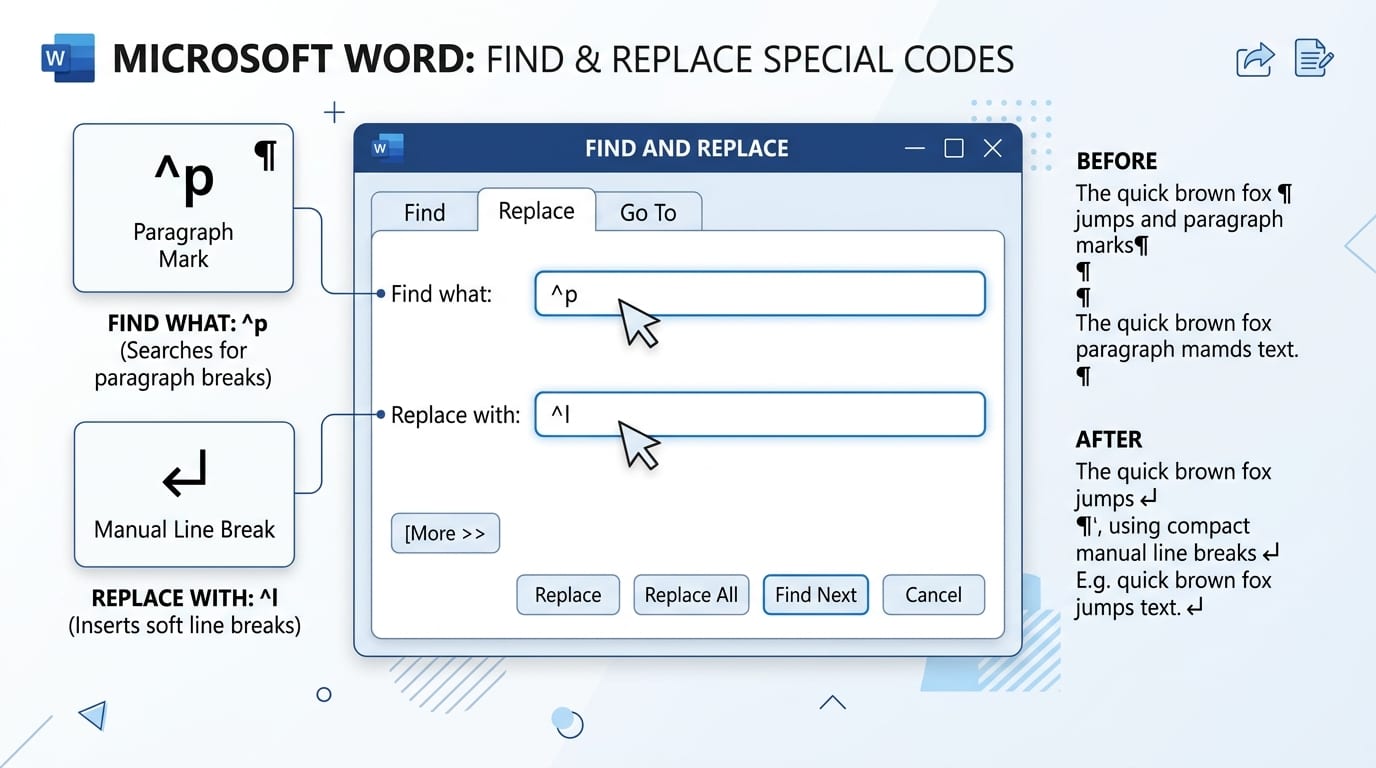
^p (Paragraph Mark) and ^l (Manual Line Break) to normalize line wraps without destroying genuine paragraph structure.The Core Dilemma: Word's Two Distinct Types of Line Breaks
When text looks broken in Microsoft Word, most people immediately press the Backspace or Delete key at the end of each jagged line. On a two-hundred-word email, this is merely annoying; on a fifty-page thesis or corporate report, it wastes hours of valuable work.
The fundamental key to solving this problem efficiently is realizing that Microsoft Word differentiates between two completely distinct break characters:
Paragraph Mark (Enter)
Created by pressing the Enter key. In Word's formatting view, it appears as a Pilcrow symbol (¶). In Word's Find & Replace engine, it is represented by the code ^p.
Manual Line Break (Shift + Enter)
Created by pressing Shift + Enter. In Word, it appears as a bent arrow pointing down and left (↵). In Word's Find & Replace engine, it is represented by the code ^l (caret + lowercase L).
Why does this distinction matter? Because if your text has manual line breaks (^l) and you search for paragraph marks (^p), Word will tell you that zero occurrences were found! Conversely, if your text has paragraph marks at the end of every line, replacing all ^p with spaces will eradicate all your true paragraph margins, collapsing your whole document into a giant wall of unreadable text.
Microsoft Word Caret Codes Cheat Sheet for Find & Replace
According to official Microsoft Word Support, Word utilizes a set of special caret operators (the ^ character) to target non-printing whitespace characters:
| Caret Code | Character Name | Visual Symbol | Shortcut to Type in Word | Common Cleanup Purpose |
|---|---|---|---|---|
^p | Paragraph Mark | ¶ | Enter | Targeting hard returns at ends of lines or paragraphs |
^l | Manual Line Break | ↵ | Shift + Enter | Removing soft returns copied from web pages or emails |
^t | Tab Character | → | Tab key | Removing indentation or aligning copied table text |
^s | Non-Breaking Space | ° | Ctrl + Shift + Space | Normalizing rigid web spacing into standard spaces |
^w | Any White Space | — | Any space, tab, or break | Collapsing multiple consecutive spaces into one single space |
^m | Manual Page Break | ------- Page Break ------- | Ctrl + Enter | Stripping unwanted page breaks from imported chapters |
^- | Optional Hyphen | ¬ | Ctrl + Hyphen | Eliminating soft hyphens left behind by PDF margins |
Method 1: Removing Manual Soft Breaks (^l) in Under 10 Seconds
If the text pasted into Word came from an HTML web page, an Outlook email, or a formatted chat log, it almost certainly contains manual line breaks (soft returns). You can strip them instantly:
- Open your document in Microsoft Word.
- Press Ctrl + H (Windows) or Cmd + H (macOS) to summon the Find and Replace dialog box.
- In the Find what input field, type:
^l(caret followed by lowercase letter L). - In the Replace with input field, press the Spacebar once to type a single space (
- Click Replace All.
Word will instantly convert every manual line break into a normal space, letting your text reflow gracefully across the document margins without any jagged line endings.
Method 2: The 3-Step Placeholder Method (Preserving True Paragraphs)
When copying from PDF files or text files, each line ending is typically a hard paragraph mark (^p). If you replace all ^p with spaces, all your paragraphs will fuse together into one monstrous continuous blob.
To strip the line-ending returns while keeping the genuine gaps between paragraphs, professional Word editors utilize the Three-Step Placeholder Strategy:
Protect Paragraphs
Press Ctrl + H.
Find what: ^p^p
Replace with: ###PARABREAK###
Click Replace All. Real paragraph boundaries are now locked behind a unique token.
Strip Single Breaks
In the same dialog:
Find what: ^p
Replace with: (single space)
Click Replace All. All mid-sentence line breaks are converted to spaces.
Restore Paragraphs
Finally:
Find what: ###PARABREAK###
Replace with: ^p^p
Click Replace All. Your genuine paragraphs return with pristine spacing!
[space]^p), click More >>, check Use wildcards, and search for ([ ])^13 to eliminate spaces trailing before hard returns!Method 3: Automate with a Microsoft Word VBA Macro
If you routinely clean reports, medical records, or transcripts in Word, repeating the three-step placeholder process every day becomes tedious. You can automate the entire cleanup sequence with a lightweight Microsoft Word VBA Macro:
To install this macro: press Alt + F11 in Word to open the Visual Basic for Applications editor, click Insert > Module, paste the script above, and close the editor. You can now assign this macro to a custom keyboard shortcut or a button on Word's Quick Access Toolbar!
Method Comparison: Which Word Cleanup Workflow is Best?
Here is how the native Word approaches compare with cleaning your text using our online line break remover before pasting:
| Method | Setup Effort | Execution Speed | Hyphen Joining | Accidental Loss Risk | Recommended For |
|---|---|---|---|---|---|
| Online Line Break RemoverClean before pasting into Word | None | Instant (1 Click) | Automatic | Zero Risk | Daily copy-pasting, research, emails |
| Word 3-Step Find & ReplaceUsing ^p and placeholders | None | 1–2 minutes | No (Manual) | Moderate (Undoable) | Offline Word documents & books |
| Word VBA MacroAutomated Visual Basic Script | 5 min (VBA Setup) | 1 Click Shortcut | Requires regex script | Moderate (Cannot Undo) | Power users, repetitive workflows |
| Paste Special UnformattedKeep Text Only (Ctrl+Shift+V) | None | Instant | No | Retains all breaks | Does NOT fix line breaks (strips styles only) |
Why Cleaning Before Pasting into Word is Usually Superior
While Word's Find & Replace tool is powerful, running search queries inside an active Word document carries distinct risks:
- Destroying Existing Document Styles: If you accidentally leave Replace All running across your entire document instead of a highlighted selection, your headings, bulleted lists, and footnote formatting can get flattened.
- Failing to Rejoin Hyphenated Words: Word's caret codes cannot automatically evaluate whether a hyphen at the end of a line belongs to a split word or a permanent compound term.
- VBA Macro Undo Limitation: Actions performed by VBA macros cannot be undone using Ctrl + Z! If your macro misfires, you must close the file without saving.
By dropping your copied text into our Preserve Paragraphs Tool first, the text is sanitized, normalized, and stitched in your browser in under a second. You then paste clean, flowing text straight into Word with zero document risk!
Frequently Asked Questions
How do I view invisible line break and paragraph symbols in Word?
Why did Word Find & Replace say "0 replacements made" for ^p?
^l instead of ^p; or (2) The Use wildcards option is checked under More >>. In wildcard mode, Word does not accept ^p in the "Find what" box (you must use ^13 instead).Can I remove line breaks in Word on Mac?
^p and ^l directly into the text fields just like on Windows.