
How to Remove Line Breaks in Sublime Text & Vim / Neovim
Whether you prefer Sublime Text's blistering multi-cursor editing or Vim's lightning-fast modal terminal operations, joining fragmented lines and stripping unwanted newlines can be done in seconds once you know the exact keybindings and regex syntax.
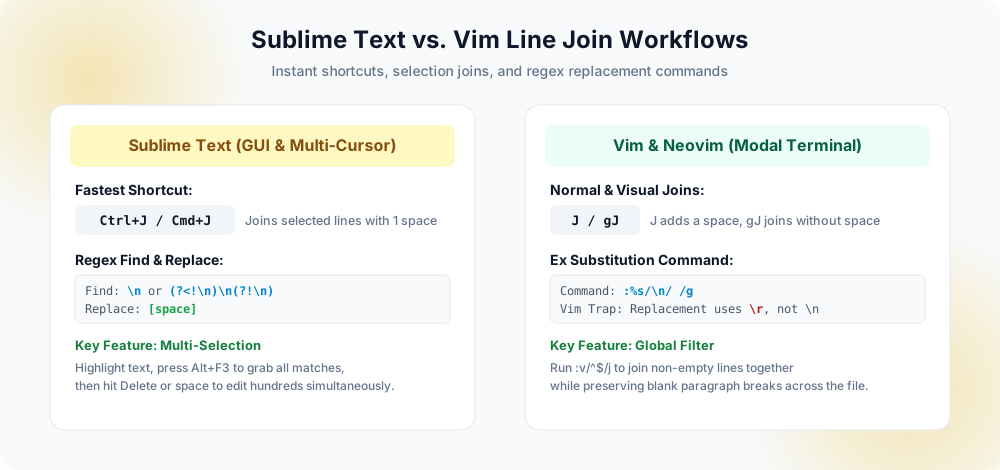
Ctrl+J joins; Vim provides modal power with J, gJ, and :%s regex transformations.Why Developers Struggle with Line Joins Across Different Editors
When text is copied into an editor from a PDF document, an SSH terminal output, or an email client, line wraps break sentences into awkward 70-character fragments.
Cleaning this up manually by placing the cursor at the end of every line, pressing Delete, and typing a space is agonizingly slow. Modern professional editors give you specialized commands to perform line joining automatically. However, each editor implements line joining with subtle behavioral differences:
- Automatic Whitespace Adjustment: Does the editor preserve indentation, delete leading spaces on wrapped lines, or insert a single clean space between joined words?
- Modal vs. Non-Modal Execution: In Sublime Text, joining operates on highlighted ranges or active cursors. In Vim, joining is a modal command executed from Normal mode, Visual mode, or through the Ex command line.
- Regex Dialect Inconsistencies: In Sublime Text, standard PCRE rules apply (
\nmatches and replaces as expected). In Vim, the newline symbol\nworks during pattern search, but behaves as a null byte in replacement patterns, where\rmust be used instead.
Join Lines (Ctrl+J)
Highlight any number of lines in Sublime Text and press Ctrl+J (or Cmd+J) to join them into a single line instantly.
Ctrl+J (Windows/Linux) / Cmd+J (Mac)Vim Normal 'J' & 'gJ'
Press J to join with a space, or gJ to join lines without adding any whitespace between words.
J (with space) | gJ (no space)Vim Command ':%s'
Execute a global buffer replacement to replace every newline with a space across an entire buffer in one keystroke.
:%s/\n/ /gMulti-Cursor Selection
Select an expression, hit Alt+F3 to select all occurrences, then use arrow keys to navigate and delete line ends simultaneously.
Alt+F3 / Cmd+Ctrl+GPart 1: Removing Line Breaks in Sublime Text
1. The Built-in Join Lines Command
Sublime Text includes one of the most intelligent line joining routines among modern text editors. When you invoke Join Lines, Sublime Text does not merely delete the newline byte; it automatically strips leading indentation from the wrapped line and inserts a single space, preventing awkward character collisions.
- Highlight the lines of text you wish to combine. (If no text is highlighted, the command joins the current line with the line immediately below).
- Press Ctrl + J on Windows and Linux, or Cmd + J on macOS.
- Alternatively, access the command from the menu: Edit → Line → Join Lines.
2. Find & Replace with Regular Expressions
If your document spans thousands of lines and contains multiple paragraphs that you want to clean across the entire file:
- Press Ctrl + H (Cmd + Alt + F on Mac) to open the Replace panel.
- Ensure Regular Expression mode is active by clicking the
.*icon on the far left or pressing Alt + R. - In the Find field, type:
\n(or\r?\nfor Windows files). - In the Replace field, press the Spacebar once to type a single space.
- Click Replace All.
3. Smart Paragraph Preservation in Sublime Text
If you want to remove soft line wraps within sentences but protect true paragraph separations (double line breaks), use PCRE negative lookarounds in Sublime Text's regex panel:
Find:    (?<!\n)\n(?!\n)
Replace:  (a single space)
This pattern says: "Find a newline character only if it is NOT preceded by another newline, and NOT followed by another newline." Consequently, isolated line wraps are converted to spaces, while double returns (\n\n) remain completely untouched!
Part 2: Removing Line Breaks in Vim & Neovim
1. Normal Mode & Visual Mode Joins
Vim provides dedicated single-keystroke commands for joining lines in Normal mode:
- Press J (Shift + J): Joins the current line with the line below, deleting leading whitespace and inserting a single space. (If the first line ends with a period, Vim may insert two spaces depending on your
'joinspaces'setting). - Press g J: Joins the lines without adding any space whatsoever. This is crucial when joining strings, URLs, or code tokens that were artificially wrapped.
- Numeric Multipliers (e.g., 5 J): Joins the next 5 lines together in one rapid motion.
2. Visual Mode Range Joining
To join a continuous block of lines:
- Press V (Shift + V) to enter Visual Line selection mode.
- Use j or k (or } to jump to paragraph end) to select the desired lines.
- Press J to join all highlighted lines with single spaces, or gJ to join with no spaces.
3. Global Buffer Substitution with Ex Commands
To strip newlines across the entire buffer without selecting text, switch to command mode by pressing ::
" Replace every newline in the file with a single space
:%s/\n/ /g

" Join all lines in the file with no spaces at all
:%s/\n//g
\n in the search pattern represents an end-of-line character. However, if you attempt to insert a newline in the replacement side using \n, Vim inserts a null byte (^@, ASCII 00). In Vim substitutions, always use \r when you want to insert a newline, and \n when searching for one!4. Preserving Paragraphs in Vim with the :v Command
Vim's :v (inverted global) command executes an action on every line that does not match a given pattern. We can use this to join lines across an entire document while leaving blank lines between paragraphs intact:
" Join non-empty lines while preserving blank paragraph breaks
:v/^$/join
Here, ^$ matches empty lines. The :v prefix runs join on all lines that are not empty, merging wrapped sentences while stopping at paragraph dividers.
Sublime Text vs. Vim Command Cheatsheet
| Operation | Sublime Text Command | Vim / Neovim Command |
|---|---|---|
| Join Selected Lines (with space) | Ctrl + J / Cmd + J | V (select) then J |
| Join Without Inserting Spaces | Regex Replace \n with nothing | gJ |
| Join Next N Lines | Shift+Down then Ctrl+J | [count] J (e.g. 4J) |
| Global Newline to Space | Find: \n | Replace: [space] | :%s/\n/ /g |
| Preserve Paragraphs | (?<!\n)\n(?!\n) | :v/^$/join |
Pre-Edit Checklist for Editors
- Selection Checked: Before hitting
Ctrl+Jin Sublime Text, verify whether you highlighted the intended block; otherwise, it will join only the active line with the line beneath it. - Regex Mode Verified: In Sublime Text, verify that the
.*icon in the Find panel is highlighted; otherwise,\nwill be searched as literal backslash and 'n'. - Vim Substitution Checked: When running
:%s/\n/ /g, check if your file contains Windows carriage returns (\r\n). If so, run:set ff=unixfirst to clean line formats. - Undo Safety Net: In Vim, press u to undo immediately if a substitution behaves unexpectedly; in Sublime Text, press Ctrl+Z.
Frequently Asked Questions
What is the shortcut to join lines in Sublime Text?
Ctrl+J on Windows/Linux or Cmd+J on macOS. Sublime Text will automatically merge the lines and insert a single space between them.What is the difference between J and gJ in Vim?
J joins the current line with the line below and automatically inserts a whitespace separator. In contrast, gJ joins the lines directly without inserting any space.Why does typing \n in Vim replacement insert a null character?
\n in the replacement string denotes a null byte (ASCII 00). To insert a true line break, you must use \r. However, when replacing a newline with a space (:%s/\n/ /g), standard spaces work normally.How do I preserve paragraphs when joining lines in Vim?
:v/^$/join. This command executes join on all non-blank lines, combining wrapped sentences while preserving empty lines between paragraphs.How do I join lines using multi-cursors in Sublime Text?
Ctrl+Alt and press Up/Down arrows (or hold Ctrl and click) to place cursors across multiple lines, then press Ctrl+J to join lines across all active cursors simultaneously.Explore Related Tools & Tutorials
VS Code Line Breaks Guide →
Discover VS Code's Join Lines keybinding, multi-cursor tricks, and regex settings.
Text EditorsNotepad++ Regex Tutorial →
Master Extended (\r\n) and Regular Expression search modes in Notepad++.
Command LineLinux & Bash Stream Tools →
Learn how to clean files directly from the terminal with tr, sed, and awk.
Online ToolPreserve Paragraphs Tool →
Clean wrapped prose without typing complex regex formulas in your editor.