
How to Remove Line Breaks in PowerShell (Strings, Files & Folders)
PowerShell gives you five ways to remove a newline and only three of them are usually right. This guide covers the operators, the guarded regex that keeps paragraphs alive, and the dry-run discipline that stops a folder-wide replace from destroying forty files at once.
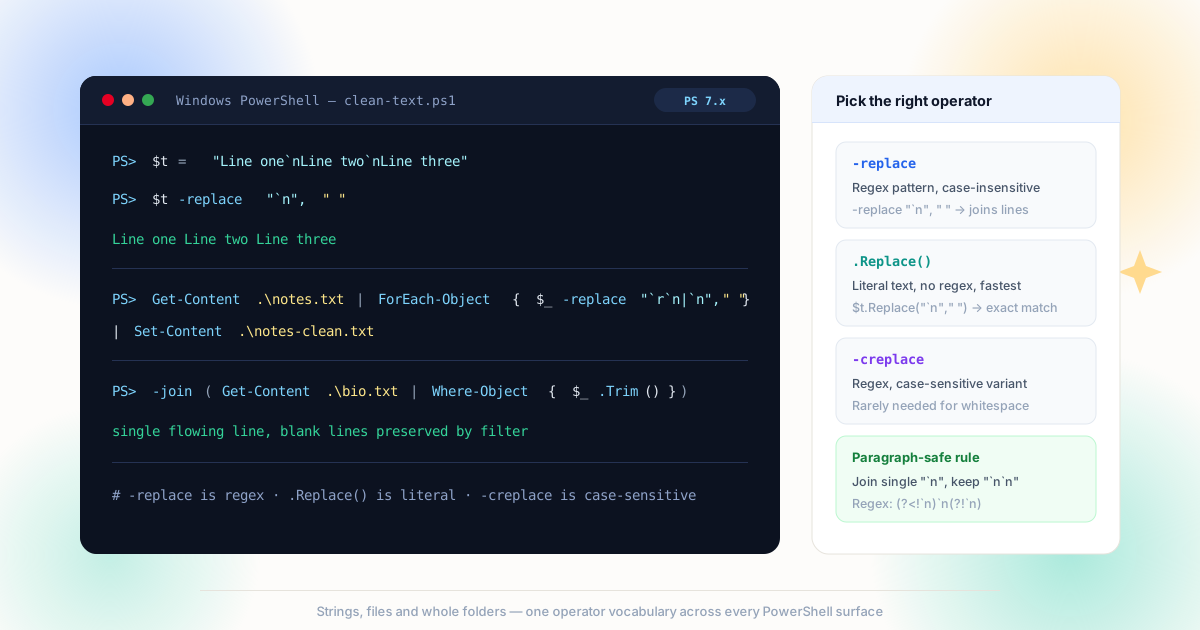
-replace syntax works on a string literal, a pipeline object and a file read with -Raw — the only decision is which newline you are matching.The Characters You Are Actually Matching
Before writing a single command, know which character you are hunting. In PowerShell a newline inside a double-quoted string is written with a backtick — and the backtick is the part most scripts get wrong.
A line feed is `n (character 10) and a carriage return is `r (character 13). Windows text files almost always store them as the pair `r`n; Unix files store a bare `n. In single-quoted strings PowerShell does not interpret backticks at all, so '`n' is two literal characters — a common reason a replace silently does nothing. The about_Quoting_Rules page in the PowerShell docs spells out this difference, and it is the single most frequent source of failed cleanup scripts. For a full character model, the newline article on Wikipedia covers LF, CR and CRLF history in one read.
The practical rule: build your pattern in double quotes, match both conventions with "`r`n|`n", and decide up front whether you are flattening everything or joining only soft-wrapped lines. That decision maps directly to the two cleanup modes — remove all breaks versus preserve paragraphs — explained in the line breaks vs paragraph breaks article.
Line Feed `n
Character 10, the Unix newline. Bare in Unix exports, second half of the CRLF pair in Windows files.
Carriage Return `r
Character 13. Removing LF alone leaves this behind — the stray ^M that editors show at line ends.
CRLF `r`n
The Windows pair. Match it first, then the bare LF — or use one alternation so neither survives.
Paragraph Gap
Two newlines in a row. The structure your guarded regex exists to protect — never flatten it blindly.
Method 1: The Replace Operator on a String
The shortest correct cleanup of a single string is one line. $t -replace "`n", ' ' replaces every newline with a space; adding the CR variant with "`r`n|`n" handles Windows input as well. Because -replace compiles its left argument as a regex, metacharacters in the pattern need escaping — but a newline is not one of them, so the simple form is already safe.
When the string is a whole paragraph that must stay a paragraph, switch to the guarded pattern: (?<!`n)`n(?!`n) matches a newline only when it is not adjacent to another one. Single newlines — soft wraps — are joined with a space; runs of blank lines are skipped entirely. The lookbehind and lookahead syntax is documented in about_Regular_Expressions, and the same guard is what the Notepad++ regex guide uses for editor-side cleanup.
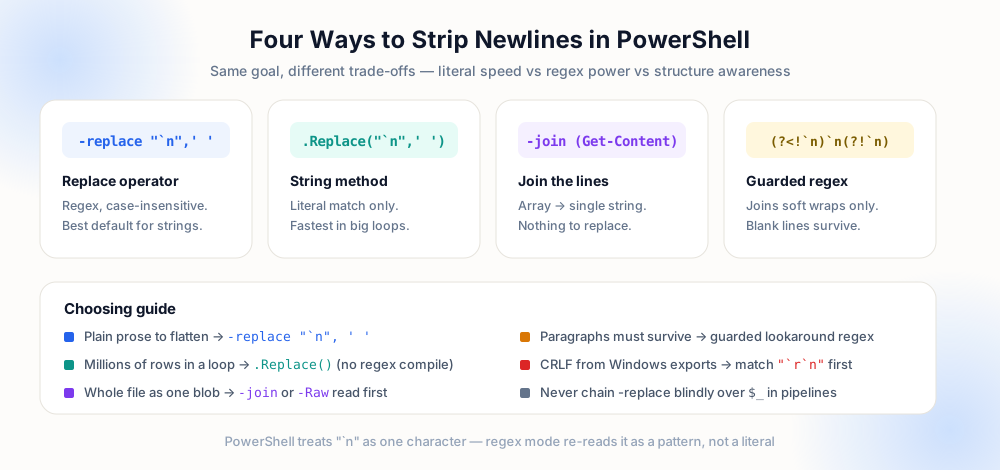
-join when the newlines are already boundaries you control.$t -replace "`n", ' ' "Dear team, I am writing about the report." → "Dear team, I am writing about the report." (structure flattened)
$t -replace "(?<!`n)`n(?!`n)", ' '

"Dear team,
I am writing

about the report."

→ paragraphs preserved
There is a third option that avoids replacement altogether. If your text already exists as an array of lines — the output of Get-Content without -Raw — then -join ' ' concatenates the elements with a separator of your choice. No character matching, no regex, no escaping: the array structure is the list of lines. Use it when you read lines and immediately flatten them, and reach for -replace only when you are handed a single string.
Method 2: Files, Folders and the -Raw Read
Files need one extra decision: read line-by-line or read as one blob. Get-Content file.txt returns an array of lines (the newlines are consumed by the reader), while Get-Content file.txt -Raw returns one string with every newline intact. Cleanup is almost always easier on the -Raw form, because the original structure — including blank lines — is still visible to your regex.
The safe single-file recipe: read raw, apply the guarded replace, write with Set-Content -Encoding utf8, then verify. Verification is not optional — compare the line count and spot-check paragraphs before you trust the output. The same preview-then-commit discipline applies to data columns in the SQL guide and to spreadsheets in the Excel and Sheets guide; only the syntax changes.
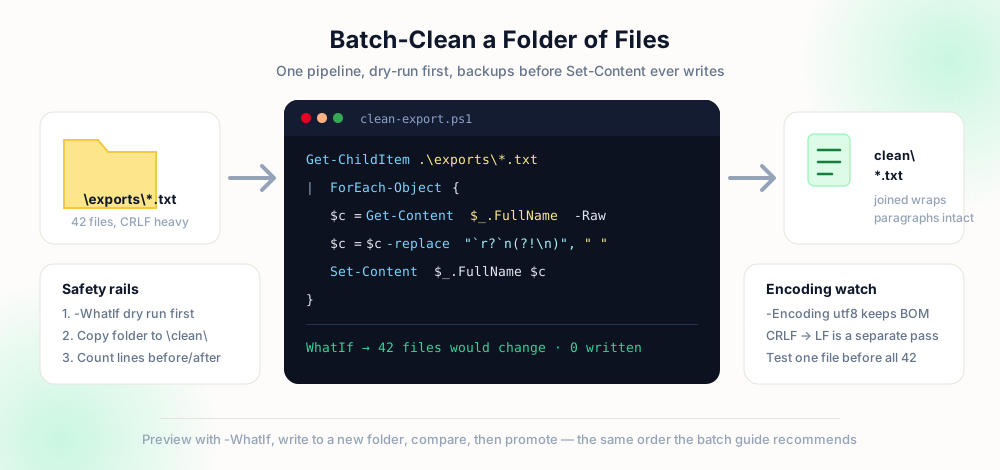
For a whole folder, pipe Get-ChildItem into ForEach-Object, process each file, and write results to a separate directory. Overwriting in place removes your ability to compare; writing to .\clean\ gives you a before/after diff for free. Add -WhatIf to the write step on the first run — PowerShell prints what it would do and changes nothing. When the report matches your expectations, remove the flag and run for real. For larger document sets with more involved rules, the batch cleanup guide extends this pattern to mixed file types, and the batch tool handles the same job in the browser when scripting is overkill.
Method 3: Choose the Operator Deliberately
PowerShell's replace surface is wider than it first appears, and each variant exists for a reason. Choosing the wrong one is rarely catastrophic — it is just slower or subtly different than you assumed.
| Syntax | Matching | Use when |
|---|---|---|
| -replace "`n", ' ' | Regex, case-insensitive | Default choice for one-off strings |
| -replace "`r`n|`n", ' ' | Regex, both endings | Input from Windows or mixed sources |
| .Replace("`n", ' ') | Literal, case-sensitive | Hot loops — no regex compilation |
| -join ' ' | Array elements | Lines already split by Get-Content |
| (?<!`n)`n(?!`n) | Regex with lookaround | Paragraphs must survive the join |
| -creplace / -ireplace | Explicit case mode | Case matters (rarely for whitespace) |
The -replace operator is documented alongside the other comparison operators in about_Comparison_Operators; the key line is that the right-hand side of -replace is a regex replacement string, where $1 and friends refer to capture groups. For newline removal you rarely need groups — but knowing they exist prevents the surprise of a $ in your replacement text being swallowed.
Encoding, WhatIf and Other Ways Scripts Fail Quietly
Newline cleanup fails in three characteristic ways, and each has a specific guard.
Nothing changes. Almost always quoting: the pattern was single-quoted, so `n stayed two characters. Test the pattern in isolation — "a`nb" -replace "`n",' ' should print a b before you point the script at a file. Half the breaks disappear. The pattern matched LF but not CRLF, leaving carriage returns behind. Match both. The file loads but looks wrong. Encoding: Set-Content with an unexpected code page mangles non-ASCII characters. Pass -Encoding utf8 explicitly and confirm the file opens correctly before running the rest of the batch. The same three failures show up in every other environment we cover — see the Python checklist in the Python guide for the equivalent traps there.
None of these are visible until you look at output, which is why every recipe above ends with a verification step. A script that reports its own before/after counts — lines read, lines written, paragraphs preserved — turns a silent corruption into a console message you can act on.
Assembling the Safe Folder Script
Individual operators are one line each; the discipline lives in the order of operations around them. A cleanup script should read once, transform in memory, write somewhere else, and report what it did — in that order, every time. The two scripts below do the same text transformation, and only one of them is safe to run on a folder you care about.
Get-ChildItem *.txt | ForEach-Object {
  (Get-Content $_ -Raw) -replace "`r`n|`n", ' ' |
    Set-Content $_
}$src = '.\drafts'
$out = '.\clean'
New-Item $out -ItemType Directory -Force | Out-Null
Get-ChildItem $src -Filter *.txt | ForEach-Object {
$raw = Get-Content $_.FullName -Raw
$text = $raw -replace "`r`n|`n", ' '
$dest = Join-Path $out $_.Name
Set-Content $dest $text -Encoding utf8
"{0}: {1} -> {2} lines" -f $_.Name,
($raw -split "`n").Count, ($text -split "`n").Count
}Four decisions separate the right-hand script from the left. The destination directory is distinct from the source, so a mistake costs you nothing except a folder of drafts — the original files remain available for a before/after diff, which is the cheapest verification there is. The read uses -Raw, giving the operator one string instead of an array of lines, so the pattern never sees a boundary the array created. -Encoding utf8 is explicit rather than inherited from the host, which is what makes output identical on a workstation and in a scheduled task. And the script prints a per-file count, turning silent corruption into a console message the moment a number looks wrong.
Run it once with the write step carrying -WhatIf — PowerShell reports the files it would create and touches nothing — and compare the report against what you expect before removing the flag. When the transformation itself needs scrutiny rather than the file handling, the same shapes reappear in every other environment we cover: the Python guide builds the identical read-transform-verify-write loop, and the batch cleanup guide extends it to mixed file types and delimiter-based splitting.
Pre-Run Checklist
- Quoting verified — the pattern is double-quoted, so backtick sequences evaluate to real characters.
- Both endings covered —
"`r`n|`n"matches CRLF and LF input in one pass. - Mode chosen by destination — flatten for data fields, guarded regex for prose (see the CSV guide for field rules).
- -WhatIf ran clean — the dry run reports the files you expected and nothing else.
- Output written elsewhere — a new folder or copy, so before/after comparison stays possible.
- Encoding pinned —
-Encoding utf8is explicit, and one sample file was reopened and checked.
Frequently Asked Questions
How do I remove line breaks from a string in PowerShell?
$t -replace "`n", ' ' to turn every newline into a space, or "`r`n|`n" as the pattern to cover Windows CRLF input as well. The pattern must be double-quoted so the backtick evaluates to a real newline character.What is the difference between -replace and .Replace()?
-replace compiles the pattern as a regex and is case-insensitive, so metacharacters carry meaning. String.Replace() matches literal text exactly and skips regex overhead — faster in large loops, but it will not understand lookarounds.How do I remove line breaks from a file without losing paragraphs?
Get-Content -Raw, apply the guarded regex (?<!`n)`n(?!`n) replacing with a space, then write with Set-Content -Encoding utf8. Only newlines not adjacent to another newline are joined, so blank-line paragraph boundaries survive.How do I process an entire folder safely?
Get-ChildItem into ForEach-Object, process each file with -Raw, and write results to a new directory. Run once with -WhatIf to see what would change, compare line counts on a sample, then run without the flag.Why do stray ^M characters remain after cleanup?
"`r`n" first or use the alternation "`r`n|`n" so both characters of the pair are replaced in a single pass.Explore Related Tools & Tutorials
Remove Line Breaks in Python →
The same recipes with re.sub, splitlines and pandas — side by side with PowerShell.
AdvancedBatch-Clean Multiple Documents →
Folder-scale cleanup beyond one script — pipelines, backups and verification.
ToolBatch Mode Tool →
Run the same cleanup across pasted batches without writing a script.
Code EditorsRemove Line Breaks in VS Code →
When the fix belongs in the editor instead of a script — join lines and scoped regex.